
When you open Workspot, you should see the available shares.
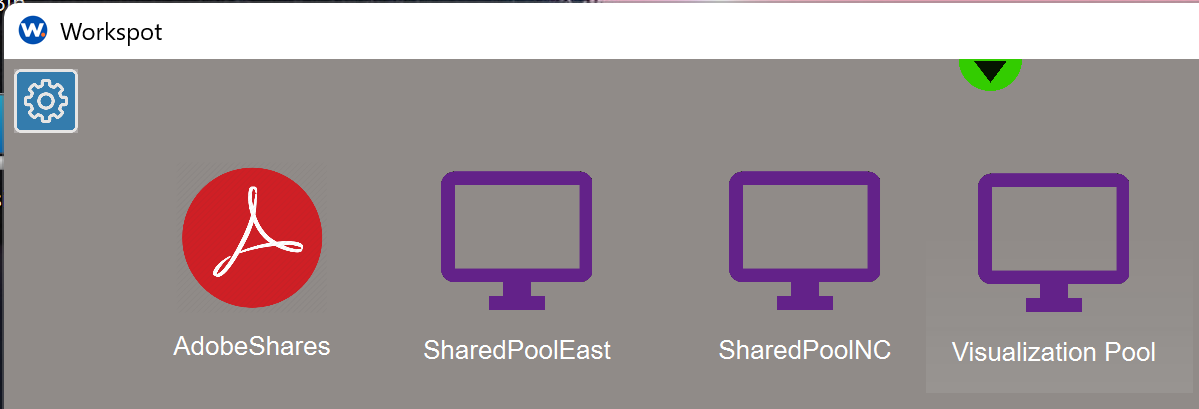
Shared Pools are several accessible computers that have the assigned software installed, ie. Adobe Creative Suite, older versions of Revit, etc. Note: If you are not active in the share, after 30 minutes, it will disconnect you. Best practice is to sign in, complete your work, and sign out when finished.
- Even if one is in use, the next available computer will be provided.
- To make sure that Shared Pool computers are kept available, they do have a shorter timeout policy than dedicated user computers.
- Each time you open a SharedPool computers it may take several minutes for the Share to start. These computers are paused after each use. Be patient!
- In the off chance they are all in use you will get the following message and will need to wait for one to become available.
Shared Pool NC + East
When might you use these? Below are common examples:
- If you are not a regular user of Workspot and you do not have your laptop with you offsite, the Share computers will provide you the tools that you need for the day. i.e. Revit is not supported through a laptop and VPN.
- You need to access an older version of software that you do not normally use or have installed on your computer.
For those that have an assigned Workspot computer, these are a backup. Perhaps the region you regularly work in is having systemic issues and you require immediate access. For disaster recovery purposes, region East could use North Central and region North Central could use East. IT will be posting a #TechAlert letting you know when this is appropriate.
Visualization Pool
The Visualization Pool is reserved for Rendering only when your local machine is not powerful enough.
i.e Large Detail Rendered Models
Adobe Shared Pool
The first time you use an Adobe share, you will need to be signed in to Adobe Creative Suite for that specific computer account. Please do not create a trial account.
Please let us know the following in order to sign you into an Adobe account.
- Provide the computer name. Since it won’t be obvious what computer you are on, you will find a “What Share Am I On” tool on the desktop that you can double-click to run.
-
Please note in the example it states “AdobeShare-001”. Submit a ticket to support@eua.com with the computer name you are running. IT will know what license to apply to this computer.
Comments
0 comments
Please sign in to leave a comment.